Quick Link

Works with Amazon Alexa
Preparation
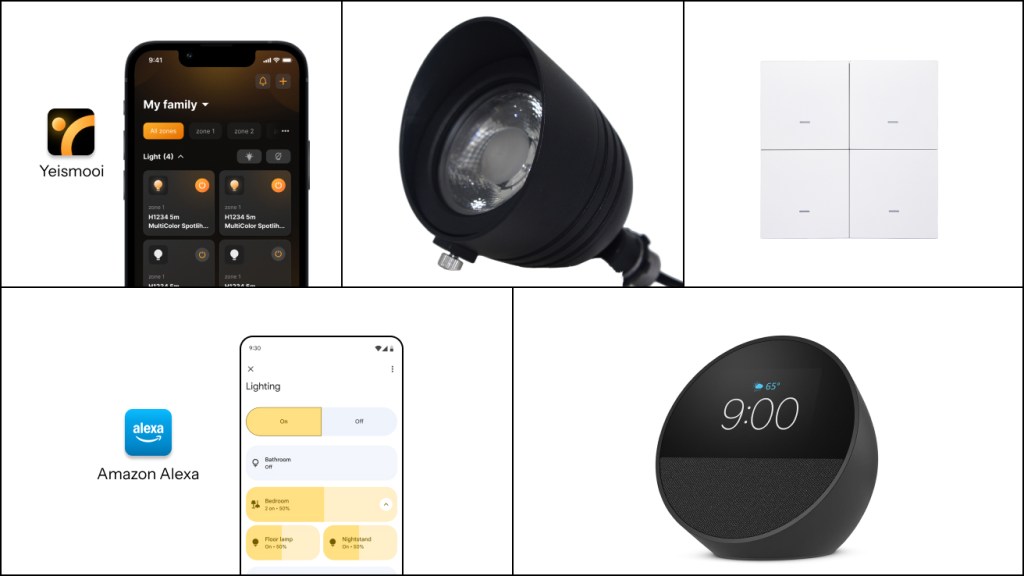
Yeismooi Switch Hub, Yeismooi Lights, Yeismooi App, Alexa App and A device with Alexa (e.g. Echo smart speaker/display).
Step 1: Setup in the Yeismooi App
- Provision your Yeismooi Switch Hub and Lights in Yeismooi App.
- Optional: Set up a few fun scenes in the Yeismooi App with simple names like Relax Time or Party Night. This makes it super easy to call them out with your voice later.
Step 2: Link Yeismooi Skill in Alexa
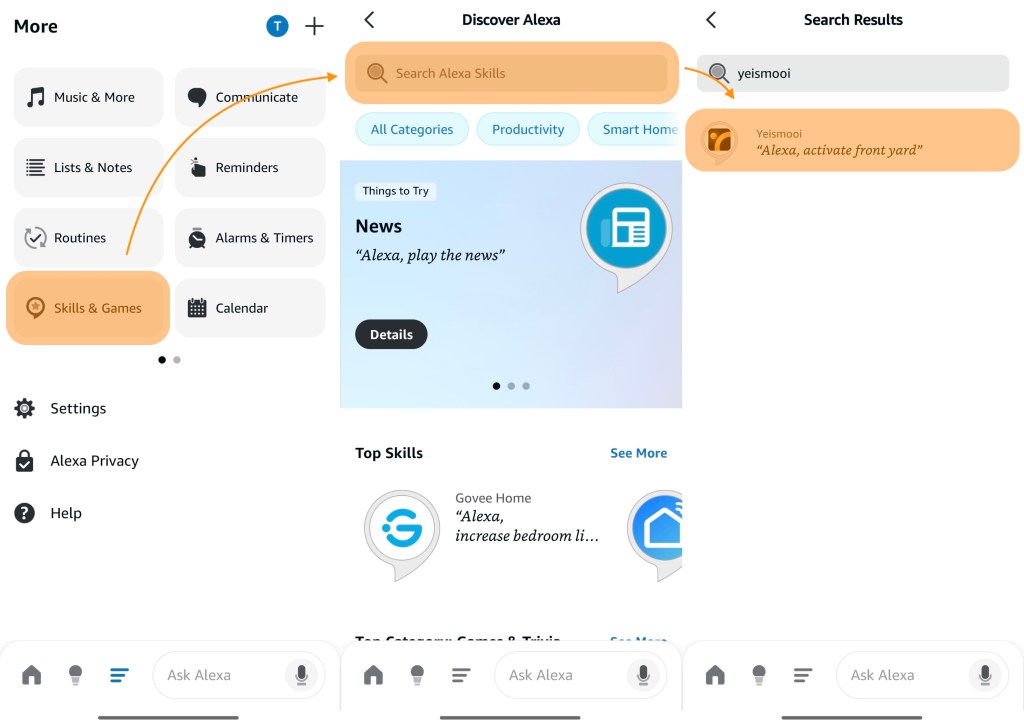
- Open the Alexa App on your phone.
- Search for “Yeismooi” in Skills & Games.
- Tap “Enable”, then link your Yeismooi account when prompted.
- After linking, your Yeismooi devices / scenes should automatically sync to Alexa. If not detected immediately, say: “Alexa, discover new devices / scenes.”
- Use simple voice commands to control the lights:
Alexa, turn on / off all lights
Step 3: Group Control in Alexa
- In the Alexa App under Devices, create a Group (for example, “Backyard”) and add your Yeismooi lights to it.
- Then control the whole group with:
Voice Control for Your Yeismooi Scenes
- Your scenes (like Relax Time or Party Night) sync automatically after account linking. To make them visible to Alexa:
- Navigate to the Devices tab → scroll to Scenes → tap Discover Scenes, or say: “Alexa, discover new scenes.”
- Once discovered, the scenes will appear in Alexa’s Scenes tab. You can activate them with commands like:
Works with Google Assistant
Preparation

Yeismooi Switch Hub, Yeismooi Lights, Yeismooi App, Google Home App and a device with Google Assistant (a smart speaker, smart display, or Assistant-enabled phone/tablet)
Step 1: Setup in the Yeismooi App
- Provision your Yeismooi Switch Hub and Lights in Yeismooi App.
- Set up a few fun scenes in the Yeismooi App with simple names like Relax Time or Party Night. This makes it super easy to call them out with your voice later.
Step 2: Linking with Google Home
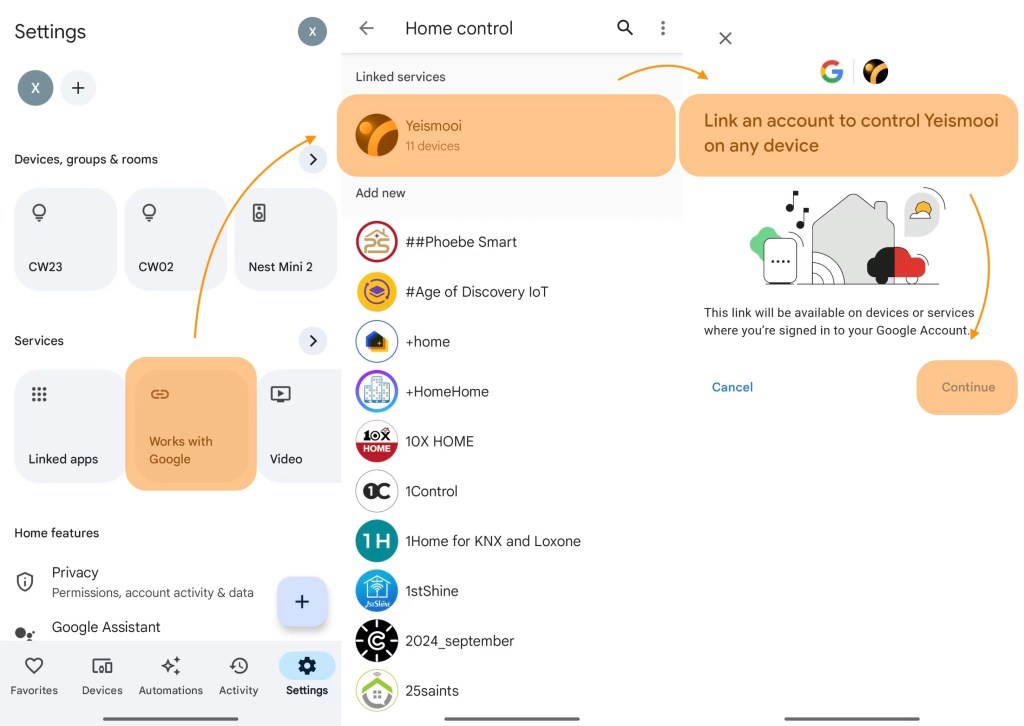
- Open the Google Home App on your phone.
- Go to Settings → Works with Google.
- Find and enable the Yeismooi Action.
- Complete account linking to sync your Yeismooi devices and scenes with Google.
Step 3: Voice Control the lights
To use voice commands like “Hey Google, turn on Relax Time”, you need a Google Assistant-enabled device, such as: Nest Mini, Nest Audio, Nest Hub, etc. Use simple voice commands to control the lights:
Step 4: Group Control in Google Assistant
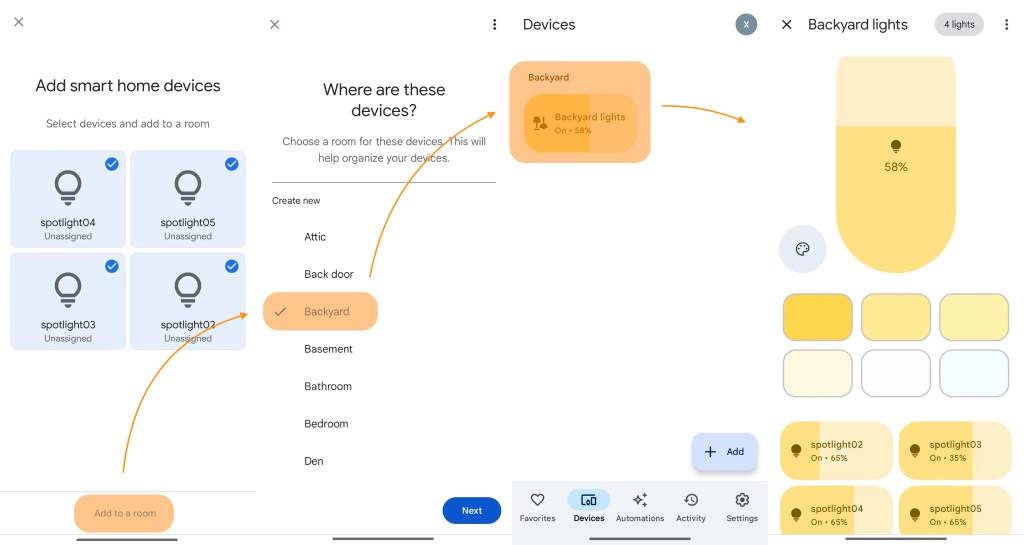
You can also create a group (e.g. Backyard) in Google Home and assign Yeismooi lights in the group. To control the group, simply say:
Step 5: Voice Control with Your Yeismooi Scenes
Regularly, your created Yeismooi scenes will be automatically synced after account linking. Unlike Alexa, Google Home would not list your Yeismooi scenes but you can still activate the scenes using voice commands like below:

Smart Light. Elegant Outdoors. Your Style.
Contact Us
support@yeismooi.com
Monday – Friday
8AM-6PM(CST)
APP Download


Copyright © 2025 Lingying (Shanghai) IoT Technology Co., Ltd. · Yeismooi
 Yeismooi Smart Lighting System for Yard – Lingying (Shanghai) Internet of Things Technology Co., Ltd.